I’m thrilled to announce that I’m going to be launching a Conan Exiles server personally for friends and family to play on. As a fan of the survival game genre – Conan Exiles offers a pretty unique blend of resource gathering, adventuring, and exploring a wilderness filled with monsters, animals and gods.
Just for my own reference – the server settings (in their unedited form) are below. An explanation of the settings is available here:
MaxNudity=0
ServerCommunity=0
ConfigVersion=9
BlueprintConfigVersion=19
PurgeNPCBuildingDamageMultiplier=(5.000000,5.000000,10.000000,15.000000,20.000000,25.000000)
PlayerKnockbackMultiplier=1.000000
NPCKnockbackMultiplier=1.000000
StructureDamageMultiplier=1.000000
StructureHealthMultiplier=1.000000
NPCRespawnMultiplier=1.000000
NPCHealthMultiplier=1.000000
CraftingCostMultiplier=1.000000
PlayerDamageMultiplier=1.000000
PlayerDamageTakenMultiplier=1.000000
MinionDamageMultiplier=1.000000
MinionDamageTakenMultiplier=1.000000
NPCDamageMultiplier=1.000000
NPCDamageTakenMultiplier=1.000000
PlayerEncumbranceMultiplier=1.000000
PlayerEncumbrancePenaltyMultiplier=1.000000
PlayerMovementSpeedScale=1.000000
PlayerStaminaCostSprintMultiplier=1.000000
PlayerSprintSpeedScale=1.000000
PlayerStaminaCostMultiplier=1.000000
PlayerHealthRegenSpeedScale=1.000000
PlayerXPRateMultiplier=1.000000
PlayerXPKillMultiplier=1.000000
PlayerXPHarvestMultiplier=1.000000
PlayerXPCraftMultiplier=1.000000
PlayerXPTimeMultiplier=1.000000
DogsOfTheDesertSpawnWithDogs=False
CrossDesertOnce=True
ThrallExclusionRadius=500.000000
MaxAggroRange=9000.000000
FriendlyFireDamageMultiplier=0.250000
CampsIgnoreLandclaim=True
AvatarDomeDurationMultiplier=1.000000
AvatarDomeDamageMultiplier=1.000000
NPCMaxSpawnCapMultiplier=1.000000
serverRegion=0
RestrictPVPTime=False
PVPTimeWeekdayStart=0
PVPTimeWeekdayEnd=0
PVPTimeWeekendStart=0
PVPTimeWeekendEnd=0
RestrictPVPBuildingDamageTime=False
PVPBuildingDamageTimeWeekdayStart=0
PVPBuildingDamageTimeWeekdayEnd=0
PVPBuildingDamageTimeWeekendStart=0
PVPBuildingDamageTimeWeekendEnd=0
CombatModeModifier=0
ContainersIgnoreOwnership=True
LandClaimRadiusMultiplier=1.000000
BuildingPreloadRadius=80.000000
ServerPassword=
ServerMessageOfTheDay=
KickAFKPercentage=80
KickAFKTime=2700
OfflinePlayersUnconsciousBodiesHours=168
CorpsesPerPlayer=3
ItemConvertionMultiplier=1.000000
ThrallConversionMultiplier=1.000000
FuelBurnTimeMultiplier=1.000000
StaminaRegenerationTime=3.000000
StaminaExhaustionTime=3.000000
StaminaStaticRegenRateMultiplier=1.000000
StaminaMovingRegenRateMultiplier=1.000000
PlayerStaminaRegenSpeedScale=1.000000
StaminaOnConsumeRegenPause=1.500000
I’m a bit of a purist and don’t want to detract too much from a vanilla experience. Likewise, I may also work towards doing a server reset on a fairly long schedule (unsure yet, but I’m thinking every 90 days).
So recently, I replaced my mum’s iPhone 5S with the iPhone 6 Plus I owned prior to my Samsung Galaxy Note 8. She was thrilled to have a larger screen, and a faster phone. Now, all I need is a way to port her mobile number across to an Optus SIM so I can data pool with her just in case she needs to head to out.
I out of curiosity, decided to try using the iPhone 5S as my main every day driver phone.
What I’ve always hated about the recent smartphone craze, is the need for larger screens, and bigger footprints for more power. I don’t suffer a long commute (I’m blessed with a carpark space in the middle of Sydney CBD, and I drive for my commute into the city), and it’s rare for me to be far enough away from a PC, tablet, or laptop that would require me to use my phone as the primary device.
I noted quietly the uses I have for my phone:
- Calls
- Messages (including SMS, and digital web-based messaging)
- Maps
- Occasionally reading
- Music listening
- Making a wifi hotspot
And that’s about it. I don’t exactly use my phone for media consumption, gaming or any kind of productivity really. So, my phone needs are quite a lot lower than your average smartphone enthusiast.
The downsides so far:
- The phone carked it this morning and I had to reboot it to get it working properly, it’s only my second day using this phone so I wonder if it’s the phone with a hardware issue?
- The phone’s antenna isn’t as powerful as the Note 8’s – I still get amazing coverage, but there is a noticeable reception bar difference sometimes.
The pros so far:
- Siri works really well for me. It lets me make calls while I’m driving, and that’s about it. The simplicity just works well for me.
- I can operate the phone very comfortably with one hand
- It’s one of the last iPhone SKUs with a headphone jack
At the moment, the iPhone 5S is meeting all my needs. In fact, I may end up selling the Note 8 if I reach the end of a few weeks and don’t find myself wanting the Note 8 anymore as a phone. 😮
So, I’m going into the final month of probation at my current job; my project Cloud Citizen deployment has actually already started upgrading and now I’m moving from a laptop system to a desktop system to host my personal cloud services. The machine itself is a gaming-grade desktop, running Windows 10 Professional, and I’ll be enabling Docker on it to provide additional services I might need.
Specifications
- AMD Ryzen 7 1800+ CPU (3.6GHz)
- 16GB DDR4 16-18-18-36 3200MHz RAM
- 2 x 10TB HGST 7200RPM HDDs with 256MB Cache
- 1 x 250GB Samsung Pro M2 SSD
- ASUS Turbo Geforce 1070 GTX 8GB Card
It’s significantly more powerful than my laptop, with enough resources to last me a couple of years I’m hoping. It’s sitting in an old Fractal Design Core 1000 case (circa 2008) that’s really, just barely holding together, haha! I’m using the AMD Wraith Max from my recent home desktop upgrade (AMD Ryzen 7 2700+) to cool the Ryzen 7. It seems to be working extremely well!
It’s all in the Services
So, unlike the laptop implementation of my Cloud core for Cloud Citizen, I’m going to be rolling out services on JT-CXS almost entirely exclusively for myself, and provide provisional, temporary access to others as needed. I’ll be running a number of consistent apps that passed muster when I was running on the more fiddly JT-NXS system.
Services
- Plex – personal media streaming and organisation
- Ubooquity – personal eBook/Manga library resource
- Parsec – 60fps 1080p gaming streaming to my devices at home, and on-the-go
- Jump Desktop – iOS compatible desktop streaming at high FPS
Primary Roles
Cloud Citizen’s new machine – JT-CXS – still maintains it’s role of being my core computer, to enable me to work remotely from anywhere with a reasonably fast internet connection. It should let me:
- Develop software projects (Git, Visual Studio Code, Git Bash, Sublime Text, WinSCP)
- Plan the software projects and ideas I have (Zenkit, Visio)
- Work on Documents, and Publications (Office)
- Work on Media Production and Development (Adobe Creative Cloud)
All in all, with the extra grunt this machine provides – I’m really looking forward to being less restricted in all the things I can do over a cloud connection; and really, start looking towards using my iPad or ultralight notebook as my primary physical device.
An Every Day Carry (EDC) Kit
So – with my gadgets, I’m hoping to eventually reconstruct an EDC Kit that I can use to travel with. It’s all a little interconnected really – the investment in Cloud Computing means I can offset the processing power I need on-the-go; and make a lighter EDC kit for myself so that I can catch public transport, and manage myself when I’m out and about – which in turn means I’m more likely to use my car less (thus lessening my carbon footprint, and saving some dollars in the bank).
As the final component of Project Cloud Citizen – I think it’s pleasing to say that in this final week, a device has surfaced (from when I was cleaning my room and assembling a shiny new wardrobe system) that provides an answer to the gaming shortcomings I had previously by basing myself entirely on an iPad!
My EDC is very technical and work focused – and the three primary pieces of equipment in it, are the GPD-WIN, my iPad, and my journal. These are discussed below.
Introducing the GPD-WIN
For solely gaming – the GPD-WIN is the device I’ll use.
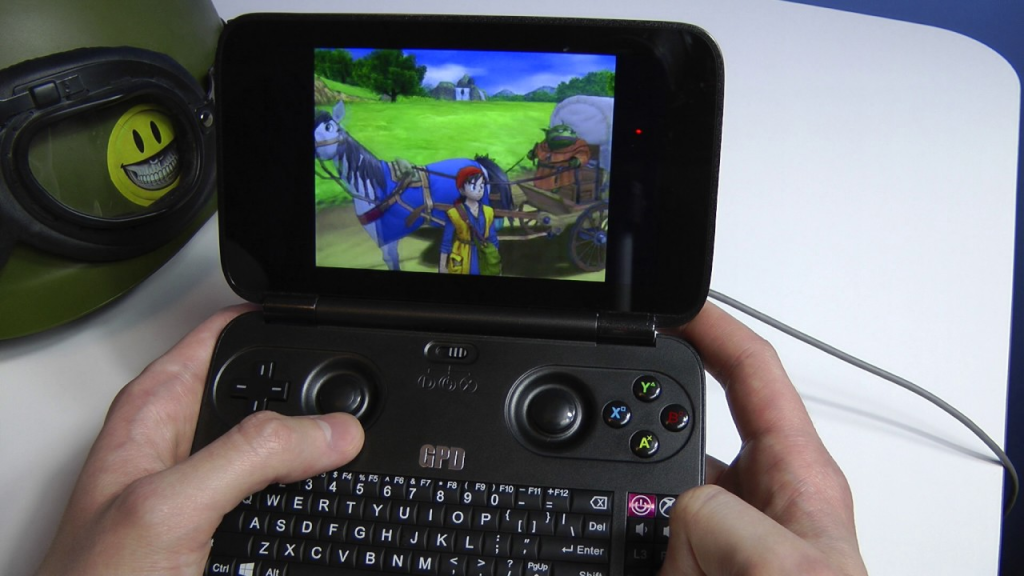
It was a perfect solution to being able to carry a device everywhere that’d let me game via the built-in Xbox Controller, and if need be, I could plug in a keyboard and mouse!
So, a couple of years ago, I bought a GPD-WIN, to try and carry around a pocket console for emulation and on-the-go coding, etc. Now at the time, I didn’t have JT-CXS to offload all the GPU processing to, so I was limited in the extreme to whatever the GPD-WIN itself could handle. Which really, was pretty much nothing beyond PS2 ROMs.
However, the device was capable of running Windows 10, and while that left next to nothing for storage, I didn’t need the storage – I could use the device as a thin-client for access to JT-CXS. It was a perfect solution to being able to carry a device everywhere that’d let me game via the built-in Xbox Controller, and if need be, I could plug in a keyboard and mouse! This meant that whilst I’m out and about and on-the-move, I had full access to my Game Libraries, and could play most modern games (and by a stretch I could use the terrible joystick-mouse mode, to play non-WASD games such as Civilization VI).
The iPad, that old workhorse
My iPad is a pretty special solution – it’s the entry-level iPad Pro 9.7-inch from 2017, and surprisingly, it’s been extremely helpful, despite a lack of 4G. When I get a chance to upgrade, I will be sure to get a device with Cellular capabilities.
The iPad will primarily be used for:
- Coding on-the-go
- Browser/Media Consumption
- Design + Planning
- Forex trading and financial management
The Bujo (Bullet Journal)
Bullet Journalling has changed my life. Seriously, it’s become a day-to-day system that helps me manage and self-reflect on a level that no digital system has ever been able to achieve. It’s a simple (or as complex as you want) system of writing a daily log in a book that helps you compartmentalise and keep track of all the crap that’s flying around in your life. I’ll probably blog a bit more about this later on, but here’s the intro ‘how-to’ video:
I use the Moleskine Soft Squared Notebook (L) to keep my Bujo in order; expensive, but I love the feel of the book in general, and its simple, unassuming, no-nonsense design. In fact, I’ve just made a note to myself to start working on buying more of these notebooks so I don’t run out in the future.
And so we come to the end of Project Cloud Citizen. Sure there are tweaks and fixes needed, but for the overall part I’m able to travel around with a newly organised EDC bag, and perform all the duties and tech work I need, without breaking a sweat, or being chained down to a desk now. It’s not complete freedom, it’s just usingi the power of the cloud to extend that ‘leash’ I have to my work, so that I can move around and enjoy what I need, whever I need.
So, I’ve never really been shy about using linux as an Operating System for my web servers; be it Debian, Ubuntu, CentOS or otherwise.
However, for the first time tonight I’ve decided to roll out Linux on a desktop that I’ll be using; it’s for the bedroom, where I might do some blog writing, or check my email, and some general productivity basics. Enter Ubuntu 18.04 LTS Desktop edition. Yup, that same Bionic Beaver version I was kidding about on Twitter a few days ago; I’ve started using it.
It’s only been about 15 minutes (the install itself took an additional 5 minutes on top of that) but within that 15 minutes, I’ve got Visual Studio Code running, I’m writing this blog post, and I’ve started installing Git. Seriously, from start to finish, that’s an incredible turnaround speed at which I’ve booted into the OS, started configuring it and immediately become productive.
I haven’t really gotten elbows deep into the guts of the OS in terms of customisation, but hot diggity there’s already a few nice things I like about it:
- I’m using my 34″ ultrawide as my default monitor in the bedroom, the 3440 x 1440 resolution is natively supported
- The whole interface feels really snappy and quite intuitive!
- I got VLC and Spotify running almost instantly (I had to login to Spotify, that was the biggest delay)
- Parsec streaming is no nonsense for when I need to use Windows stuff (Games, Adobe Suite etc)
So far, the OS does all the usual stuff I need, with the exception of gaming, but that was always the intent with a machine in the bedroom. The last thing I want is to be gaming and disturbing my significant other in the middle of the night.
Overall, really pleased with the OS. And can foresee myself using it more often from now on!
So, in a previous post about Project Cloud Citizen, I mentioned that I was possibly going to use my iPad with an iOS specific mouse. Enter, the Citrix X1 mouse, and the Jump Desktop App!
I’ve literally had the mouse for about 10 minutes, and it’s working a treat through Jump Desktop; it feels a little weird, but seems to be tracking fine. I’m actually stunned at how usable it is!
Sadly, all the gaming sync’d issues with the Dex Pad that I reported having, also seem to be mimicked with the iPad, Citrix X1 and Jump Desktop. There’s a small bit of hope however — certain game styles do work with the setup. Things like DIablo 3, Torchlight 2, etc. Games that don’t require constant, active input from something like the WASD control setup do work very nicely.
So there’s some middle ground there, I think my expectations overall, are too high for something like iPad cloud streaming for games right now; and that’s ok. Having things work on the iPad, within a self-contained little unit, with phenomenal battery life, and usability – perfectly matches my desire to be fully mobile, while also matching my desire to not carry something around that’s as heavy as a laptop, at least for the time being.
Too many Compromises
While there’s some games that work – really, the iPad works as a decent laptop replacement when I use it to remote into my Windows systems, with minimal disruption. Sadly, it’s not going to let me remote in and play games. All my other bits of productivity, would remain unaffected, and at the end of the day, that’s pretty important.
So end of the day, the iPad, combined with the Citrix X1 mouse does make the best laptop replacement – with instant on, superior battery life; I won’t ever really be without abilities for productivity. I just can’t really expect to play amazing games with only my mouse.
It’ll still be in my Every Day Carry
With a combination of PLEX, Netflix, Jump Desktop, and the Pencil/Citrix X1/Smart Keyboard combo, my iPad becomes a suitable, extremely lightweight laptop replacement. The instant-on, and insane battery life, give it a pretty awesome advantage. The size is still reasonably large enough that I can get work and media consumption on it done, and still handle it comfortably in one hand.
As mentioned in part 1 of The Samsung Dex Pad posts – I’m looking into cloud gaming with the Dex Pad as well. It’s so far provided a pretty good solution for working via RDP solutions, with a few (so far) trivial issues. This part covers a little more in-depth overview of the issues I’m currently facing with the Dex Pad…
Mouse Capture Issues
My weapon app of choice when it comes to streaming my desktop is Parsec – it’s worked amazingly well for 1080p 60fps cloud streaming from my Notebook so far, but unfortunately, while Parsec works great, and keeps my mouse nicely within the confines of the specified 1080p resolution; I have mouse tracking issues in FPS games, unfortunately. It’s somewhat annoying and upsetting that gaming doesn’t work correctly, however some Google-fu has shown me that it’s most likely a Samsung Dex issue, and really – there’s no telling when it’ll be fixed.
To see if things were just a Parsec issue, I also ended up downloading the Moonlight Gamestream app which is based on a FOSS version of NVIDIA’s Shield streaming tech (I luckily, run a GeForce 1080Ti video card).
To test my FPS gaming purposes – I decided to pick a game of Rust, which really, is quite asking for punishment, haha!
Turn around…
In Parsec, things did not go well ™. I couldn’t turn a full 360 degrees, and had to find myself lifting my mouse off the pad to do the tiny-mouse-pad-shuffle on my giant deskmat just to turn around a little bit.
Every now and then I get a little bit nervous…
Things were worryingly bad audio wise too, with sound crackling, and some blurring of texturing every now and then, so I suspect I was having WiFi bandwidth issues. I’ll need to test a fix (probably in a Part 3) of a USB hub and usb-to-Ethernet adapter.
Turn around…
Things were even worse trying to turn in Moonlight – I completely lost Mouse Capture abilities – although my mouse buttons for left/right-click were working. Keyboard input was fine, however.
Every now and then I get a little bit terrified…
And then my first PvP moment came. Almost instantly my attacked realized I couldn’t turn around, and to add to insult, he started taunting me over voice chat in-game. And here’s the other problem, I had no mic support. This is more a combination of the Dex and Parsec/Moonlight’s support for the devices.
Some fiddling required!
There’s a lot of work that’s needed in Samsung Dex (Pad). For example, not every sort of keyboard shortcut is pulled across to the Dex, sure the common ones are (ctrl + c, ctrl + v); but input gets entangled when I typed too fast for the Dex (I type about 130wpm) and why is shift + spacebar a shortcut for what language I’m using on my keyboard?? A quick Google search shows I’m not alone in being annoyed at this, and I’ve ended up having to download a separate app to just tweak and deal with Dex’s shortcomings.
It’s annoying, and the product is a work in progress I suppose – from a developer’s standpoint, I doubt there’s any reasonable way for the Samsung engineers to spend time working out the configurations that every user ever will need out of the Dex. But you’d think Korea’s largest company would have some resources for internationalization and basic research. It just wasn’t enough.
Here’s two apps that saved my Dex experience, and to top it off, I had to pay moneyfor one of them, which made me even more upset.
- Dex MAX – this app lets me repackage the APKs of other Apps as needed to fit full screen
- Desktop Hub (Dex Hub) – I had to pay $3.99 to unlock the ‘Pro’ version of this app, which helped me reconfigure a bunch of Dex built-in keyboard shortcuts, volume/screen usability tweaks and more
On top of all the shenanigans above, I’ve now also needed to enable developer mode which really, is a hugely unnecessary (albeit probably inevitable in terms of the lifetime of my ownership of the Note 8 and an Android phone) step. While I have no doubt that at some point in the future I would have enabled this mode and stuck my hand up the Note 8’s proverbial skirt, it annoys me that I have to do this for a first party accessory, just to get some applications to behave properly, and enable greater usability in app window management!
So, what does work?
Remote desktop works – be it through either Parsec (preferred) or via Microsoft’s RDP App inside Dex MAX for fullscreen compatibility. So there is that at least; it means I can do my work, designs, and projects as needed.
Natively, there’s Microsoft Office which all works completely fine on the Dex, it’s optimised for Dex in fact and I didn’t have any problems using it – being a near identical experience to the real desktop applications. Mad props to Microsoft for putting so much effort into their Office suite!
Plex also kind of works. I have to use the browser based version to watch my media, and it’s got some odd re-sizing issues (full screen mode goes black after about 10 seconds). Netflix actually works very well once developer mode and ‘True Window’ mode from Desktop Hub is enabled. The subtitles even seem clearer than the native apps on iOS and Playstation!
In the end…
Will I be using the Dex Pad? Yes. To keep it short and sweet, the Dex Pad lets me do a lot, with a thin client, without the extra hassle of a laptop. The ‘extra computing power’ of a laptop is moot for the situation I want to use it in (explicitly, as a thin client to do computing from my bedroom should I need it). I can enjoy most of my media, and all the productivity I might need with it.
Samsung is going to have to go more than halfway across the bridge to entice devs to start making products that work with it. Once the ball gets rolling though, look out Apple and Microsoft!
Gaming does work, but not entirely well. But there are some games which do, and gamepad gaming still works a treat so I’m not completely without. Admittedly, this is being used as a Cloud Gaming terminal, which I must stress the Dex was not intended for. In fact, even if it were intended for gaming as it mentions in passing, cloud based gaming would’ve been the last thing on their minds.
Again though, it’s an adventure and hassle in configuration that shows an incomplete experience with incredible potential. The Dex is the closest desktop replacement I’ve gotten for a non-PC/laptop device. And I so eagerly want to love it and use it that I’m even doing so now, and will be going ahead with using it for a lot of my evening computing.
But I cannot stress how impossible it would be, without already owning a beast of a PC, strenuous setup with the Cloud Citizen project, and a lot of compromises on my behalf to accept how things work. I am using the Dex far beyond the scope of Enterprise applications (essentially office productivity suite level applications). Studio applications work to some extent, I can see orthographic based 3D-applications working well here; using Unreal Engine Editor, Unity 3D, ZBrush, and Google Sketchup gave me quite a few headaches with mouse movement syncing working only partially.
I cannot recommend this product to anyone else. But I respect what Samsung’s trying to achieve here, and I personally will remain interested (and a user) in the Dex product lineup as we continue on into the future. There’s a lot of promise here, and Samsung could well have a golden ticket to a much much larger install base instantly, with the possibilities the Dex provides.
It just needs that extra support from the app developers, and more of Samsung’s own resources thrown at it too. It’s a great platform, but Samsung is going to have to go more than halfway across the bridge to entice devs to start making products that work with it. Once the ball gets rolling though, look out Apple and Microsoft!
So, this afternoon, I picked up the Samsung Dex Pad. Some of you will recall my earlier blog post bemoaning whether or not I can survive on just a tablet, and whilst I actually have a Citrix M1 Mouse for the iPad on its way, I also decided to pick up the Dex Pad, as a potential thin client replacement for my bedroom.

This little doohickey is the next revision of the Dex Station which was released with the Samsung Galaxy/Note 8 series. This version, released with the Galaxy 9 series – requires any 8 series devices to have Android Oreo as a base release for the OS for backwards compatibility.
It supports up to 2K resolution, has a built in cooling fan, and uses a platform based docking form factor, instead of a puck-shaped vertical factor. It makes a lot of sense actually, as it lets the phone be used as a trackpad or keyboard as required, should no extra input devices be available. It’s a very clever idea, one that I’m sure would be welcome to a lot of semi-mobile workstation users.
I’m actually writing this post at around about midnight, and it’s quite late, having just received the device to take a look at, the initial overall impression of the device, having spent about 10 minutes with it.
First off, this is what the browser looks like, running on a 1080p screen:

It’s perfectly usable, and I have no issues writing posts (in fact, this very post is being written via the Dex) for my blog, or doing basically productivity work. Where the big test comes in, will be on remote streaming for desktop, and gaming.
Dex MAX – an invaluable tool
So, to my horror, a lot of the apps on Dex don’t support full screen resolution – including Microsoft RDP. To fix this, I actually had to download this 3rd party companion application, Dex MAX – it’s a life saver. I probably would have returned the Dex Pad if this app did not exist.
It tries to force the apps to run full screen, and if it doesn’t work – you can enter expert mode and modify the manifests in the APKs to force a full screen mode! If that doesn’t work, then the devs will need to add native full screen support in a new version of the app.
Remote Desktop (Microsoft RDP Client)
As one of the primary reasons for an enterprise environment etc, I know a lot of organisations out there use Citrix, VMWare, etc. but you’d think that getting basic Dex support with Microsoft would be a key step. Especially considering how prolific the operating system is…
However, no, it doesn’t work without being modded by Dex MAX. Here’s a screenshot of it working in Dex MAX:

Now, it works perfectly fine as an RDP client, meaning about 90% of what I do is sorted. Productivity wise, I can scrape by as well as needed!
So all in all, it’s a pretty stable experience. It’s not the ultimate replacement, but for everything non-entertainment wise or just general browsing, it’s fine. It’s usable, and I probably will use it.
In part 2 – I’ll update my findings on gaming, which works (with many many caveats).
This is mostly a personal note on how to setup a workflow with my Web Development (PHP/MySQL & Docker based) projects. Usually, with pretty much any project, the workflow goes as follows:

Figure: My workflow prior to this article
To host my own repositories of codes per project, I actually use GOGS which is short for Go Git Service – it’s written of course, in google Go, and is essentially a self-hosted Github clone. It’s by one of the devs from the Gitlab team, and it’s far more lightweight and easier to use in a personal scope, than Gitlab (Gitlab is still wonderful, but I think it’s better suited to teams of 2 or more people).
Git hooks are amazing!
The above workflow diagram though, is missing one really critical stage – getting the code to production – a.k.a. deployment. Typically on any deployment, after the above workflow, I’d either remote in, or set up a cron job to pull from master. There’s some problems with this method of doing things:
- I’m doing a git pull which is based on merges, and can really cause some shit if there’s a conflict (there shouldn’t be, but just in case)
- I’m remoting into the server each time I have to pull for some commits, this takes up time. I’m a serial commit/push-as-save person
- It’s completely against the ethos of a developer. If I’m doing something repeatedly, I should find a way to automate it!
So, enter stage – Git hooks. Git hooks are amazing! They’re actually natively supported by Git (powered by Git) and I only really just started learning about using them. I vaguely recall encountering them earlier in my growth as a dev, but I must’ve shelved it at some point and given up trying to learn hooks (probably around the same time I cracked it at Drone CI, and Jenkins CI/CD).
Anyway, the overall concept of using a Git Hook is that I reach the final stage of the workflow I drew at the start of this article Git push to remote repository – the idea is that the Git repo then registers this push in something called a post-receive hook. It then performs some functions and essentialy plonks a pull of the latest code of my repo, into the production environment.
At first, I started off with something super simple, from my jtiong.com (this website!) repository as an example:
#!/bin/sh
ssh [email protected] 'cd /var/www/jtiong.com && git fetch && git reset --hard origin/master'
Unfortunately, this didn’t seem to work. I kept getting remote: Gogs internal error messages, and figured out it was something to do with my SSH keys not working in the authorized_keys and known_hosts files of the docker container to server shell and vice versa. After a lot of Google-fu and tinkering around, I eventually came up with the following which worked (note, it’s been edited to be a generic solution).
#!/bin/bash
ssh -o StrictHostKeyChecking=no [email protected] -p 22 -i /home/git/.ssh/id_rsa 'cd /project/folder/path && git fetch && git reset --hard origin/master'
It’s not entirely necessary, but I used the -p and -i options to specify both the SSH port and identity file used with the SSH connection (just for greater control, you should be able to remove them, your results may vary). The key section of the above command that I want to highlight is the -o StrictHostKeyChecking=no option that I’ve set. This got rid of any Host Key issues between the docker container and the host server for me. So if you’re encountering issues with your Host Key Verification or similar, this might fix your problems!
With the git command now, I used git fetch && git reset --hard origin/master instead of just doing a git pull. Why? Because git pull uses merge methods and can result in some conflicts with code, and issues that are just messy and a bad experience to untangle. Using git reset, moves the code’s pointer to a different commit without merging anything. It just overwrites it, making it slightly safer for deployment!
But of course… Why do things in just a simple way? This particular hook configuration is great for something like my personal site where I don’t mind if I’m pushing breaking bugs to production (within reason). However, when I’m doing work for clients, I need to be a little bit more careful – and I use a more typical production, staging, development branching method with my Gitflow.
Here’s what I use now:
And wonderfully – this lets me have separate branches, as required and updates the appropriate (sub)domain as needed! The wonder of Git Hooks has now streamlined how I develop projects, and deploy them in a much more pain-free manner! And so I dramatically take another step in my journey and growth as a developer haha 😛
Project Cloud Citizen has been a resounding success; it’s literally waiting now on two time-sensitive issues:
- I pass probation at work so I might have more leeway in the machine I keep in the office to use for this project;
- I decide to either use a laptop, or become almost entirely iPad based
I’ve got a generation 1 iPad Pro 9.7-inch, Wi-fi only, 32GB tablet. It was purposely bought a few years ago as a bare minimum use device for purely media consumption, but thanks to Project Cloud Citizen — it’s wonderful, it lets me do just about everything with it short of solid code development (Using docker etc) although that is already solved in the project through the really good RDP client that Microsoft makes for iPad users.
“…it’s purely from a gaming perspective that I’m holding back…”
The iPad solves and makes comfortable, an idea of having a clean, sleek slate that acts as a window into my digital world (hah, a window to Windows basically) and lets me roam around pretty much anywhere with sufficient download speeds, and minimal upload speeds – while enjoying the power of hardware that is usually not within reach in those locations.
In fact, it’s purely from a gaming perspective that I’m holding back from not even needing my laptop as I can do everything either via RDP, or directly here on the iPad itself (I’m in fact, writing this blog post on the iPad right now!). So, that leads me to think about the following options:
- Do I research exhaustively and figure out a way to remote game with my iPad (this will most likely involve money)
- Do I just make do? 70% of the time I’m gaming, will be at home, with the remaining 30% being remote on travel/visits/etc.
- Probation ending, means I’ll be able to implement a small Mini-ITX machine at the office, thus once again, freeing my laptop as a client
Option 1
Option 1, is of course, the hard way. And what would this experiment be, without trying to figure out things the hard way? There’s a variety of ways to cope with the use of the iPad as a thin client; including jailbreaking my iPad to allow it to function with a mouse, through to actually buying an iOS compatible (with specific apps) mouse. While it’s not awesome that I have to spend money for a solution, it is acceptable, as I’m paying for something that’s a bit outside the box (for most Aussie PC users), so to speak. A quick bit of Google-fu tells me that I’ll need something called the Citrix X1 Mouse, and the Jump Desktop application totalling something like, $120.00 in expenditure.
The Risks
I won’t actually be able to see how the X1 mouse feels, so the risk is that it is completely terrible for gaming, although the Jump Desktop videos briefly demonstrates some gaming with the X1 mouse (on games I’ve never seen before). So, that’s pretty much the biggest risk, I’ll be spending money on a mouse I don’t want to use, and once I have it, I might lose it because it’s wireless.
The Negatives
It’s an iPad. The main comparison I’ll be doing is against my laptop as a client.
The screen isn’t going to be very big, the keyboard isn’t as nice as a full-size mechanical keyboard, and there aren’t as many keys/options/shortcuts I can hammer around. It’s not as powerful as my laptop, in a pinch.
Local storage does become an issue as well – the laptop has 500GB built-in, whereas my iPad comes with 32GB built-in. The workaround is thankfully available in the form of lightning-connector USB memory sticks; however this still remains a negative as I’d have to carry around a whole bunch of them to meet my storage needs.
Finally also, I’m dependent on the existence of Wi-fi or a 4G tethered connection. There’s no real workaround for this aside from making sure I get a Cellular data-capable iPad when I upgrade in the future.
The Benefits
In terms of mobility, ease of use, the iPad is king. Even with carrying an extra mouse it’s still king. My laptop provides awesome functionality, and even more power; but as a thin client it does almost exactly the same stuff as the iPad. The iPad lets me use the pencil, keyboard and mouse to do all sorts of stuff, whilst all being completely silent, and functional, even as a spare camera in a hurry.
I can flip it open, or turn it on and it’ll wake instantly and I can get straight to using stuff. If I ever wanted to draw or plan a diagram, there’s an app for that (at this stage in the iOS evolution, I think that phrase is pretty much biblical now) – my Apple Pencil is hands down the best stylus I have ever used; if I need to do something more meaty than email, web and media, I can remote into my Cloud system and do it. I’ve got significant bandwidth on my 4G phone with tethering, so I’m not concerned about data limits right now.
My iPad is in a gorgeous real leather case that cost me a very pretty penny, it’s a joy to handle, carry around and appreciate. It’s smaller and quieter than my laptop too. It still has a headphone jack for my headsets, and it has a fairly comfortable keyboard/screen protector for it (an authentic Apple Smart Keyboard – admittedly in its 9.7-inch flavour which is no longer available).
The iPad is silent in operation. I can’t stress how amazing this is for me, either. My current laptop, while it’s a slim, sleek powerhouse – sounds like a jet engine ready for takeoff when anything starts to write to the SSD in it.
Option 2
The problem with Option 2 isn’t such a big one. More and more of my time in entertaining myself on my gear is passive entertainment (music, movies, TV, etc.) as opposed to interactive entertainment (games). However, it does defeat the purpose of Project Cloud Citizen. Ideally, the intent was to do everything via a thin client (in this case an iPad Pro) in the cloud.
In fact, it’s already the option I’m currently using per se.
The Risks
None really, I don’t have an extra mouse to lose, and I can still do everything I was going to do as a remote cloud user short of gaming.
The Negatives
I can’t game. I can’t show friends games, and I can’t enjoy the full power of mobile computing through the cloud on this device using just a touch interface. The touch interface is a nightmare to use on Windows RDP; buttons are still fiddly, and doing full productivity in something like Visual Studio Code, then alt-tabbing to do something in Photoshop just won’t work. While possible, it requires re-learning everything and there’s a lack of precision that a mouse pointer offers.
It affects workflow and productivity on top of the lack of gaming abilities. To me, this single handedly makes Option 2 unviable.
The Benefits
No extra equipment needed, as I can already do this now.
Option 3
Finally there’s the ‘long play’ option. This involves a few serious steps however. Once probation is over I have the room and space to deploy a mini-ITX PC at my desk. There’s some risks and negatives involved that would make me consider Option 3 as a ‘next evolution’ kind of step to the whole project.
The Risks
This is absolutely the most expensive solution to the project. It involves buying essentially a whole new PC. Hardware compatibility, configuration, etc. All the usual caveat emptor situations apply with building a new PC.
Moving to a full blown PC also means there’s issues with configuration for headless gaming.
The Negatives
Again, the price. The hardware configuration. A lot of the drawbacks of the other options no longer exist as the power of a full desktop experience comes into play.
My laptop acting as a client might work well, pending fan sounds, portability (it’s not that portable) and battery power too. My laptop itself is already quite powerful, but it weighs more than an iPad.
It has a horrible thermal solution that makes it sound like a vacuum cleaner, and packing away the laptop heats up the bag as well immediately after use; not to mention the actual temperature of the laptop when in use.
There’s a lot that I dislike about my laptop, which is why it hardly gets the usage it deserves – it’s nowhere near the sleek experience I had with the Apple MacBook Air. And in a strong sense, it’s further justification for me to use the laptop as a hub for Project Cloud Citizen, and then migrate to a PC as the next step when the laptop starts to give out.
Parting Thoughts
All told, Option 1 seems to be the way to go, with a mix of Option 3 as a ‘next stage’. Midway through writing this post (on the iPad I might add) – I realise that a Project Roadmap might be the most interesting thing to do for the outcome of this project.
So perhaps that’s what I’ll do – while Option 1 requires forking out money, it also avoids the risks of Jailbreaking my device, but also means I have applicaiton and hardware support continued for my iPad. It means my Laptop still gets some utilisation, and a purpose to it, rather than the costs of expensive hardware not being hosted within my own home.
Once I’m more comfortable in doing everything I possibly can on the iPad while away from home, I’ll migrate to a full blown desktop PC experience.
I’m a big fan of Trello. I love it a lot, it’s free, it’s simple, it’s intuitive. And recently, I’ve been looking into ways I can manage projects from a higher level view instead of a per project kanban-style in-depth view.
I’ve decided to see if Trello might actually be able to help with that.
Why do this?
Initially the value of doing this might seem frivolous; but it gives me a chance to see at any given time, the ‘active’ projects I have on my plate at any given time. Using a traffic light system, I’ll know the status of any various projects as well!
Instead of trying to keep a mental checklist of everything I’m up to, this Trello board should help me keep track of things that need to be done for a variety of different topics. Therein, I think, lies the value in doing this experiment. If successful, it’ll improve my time deficiencies, and issue tracking capabilities on a personal level.
Methodology
I’ll be using this Trello board (it’s also the Projects link on my main menu up the top of the site) to organise my Projects into different categories. Things will be sorted as:
- Each category forms a list
- Each project in that category is a card
- Tasks/To-Do in each project is in a checklist
- Comments are used to provide updates on the project
- Projects can be labelled based on the status of project:
- Green = Project is considered released (it may have upgrades and extra tasks to do)
- Yellow = Project is in active development
- Orange = Project is in conceptual/planning stages
- Red = Project halted/unstarted
Here’s a screenshot of a few projects in how I’ve organised things right now

Hopefully, by doing things this way, I will be able to keep a rolling project log through the Comments section of each of those project cards.
Expected Benefits
Greater focus on completing and achieving project outcomes; and less time spent procrastinating on what needs to be done amongst the many projects in my mind.
In conclusion (random musings)…
Prior to the start of this year, (we’re only 4 months in…) I really spent a lot of time looking at various tools and just using them at face value, never really looking into how I could best use them, nor did I feel the need to really de-clutter my life. However, the turning point I believe, was picking up the habit of Bullet Journalling, and the start of my new career opening some doors for me on how to declutter the most messy part of my life (aside from my career itself)) – my tech/gadgets and gaming habits.
I’ve since looked at the tools I have available to me, and really decided to try out using them to their better (if not greatest) effect so that I can hopefully be a bit more minimalist with my life, less wasteful and more efficient.